
How to sort lines alphabetically in Notepad++
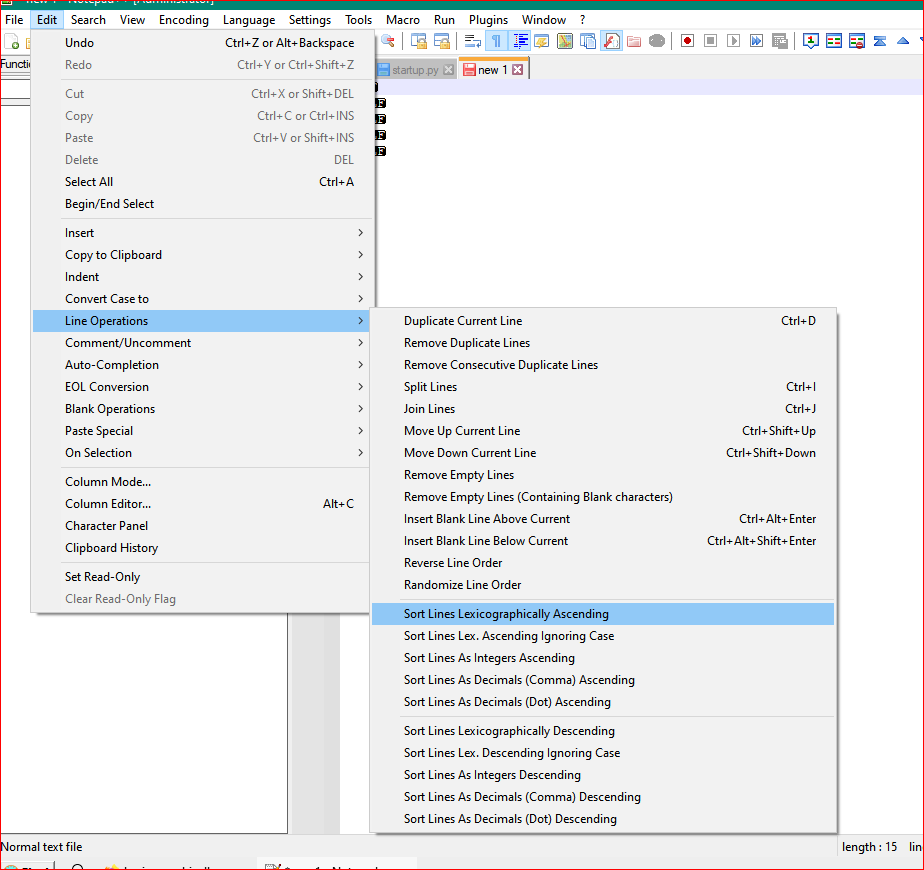
To sort lines alphabetically in Notepad++, select your list and choose Edit → Line Operations → Sort Lines Lex. Ascending Ignoring Case. This puts words in A–Z order without grouping capital letters first.
Here’s a quick example, plus what to check if the order looks wrong.
Put your list in A–Z order
- Open the text in Notepad++ and put each item on its own line.
- Select the lines you want to sort. For the whole document, press Ctrl+A.
- Open Edit → Line Operations.
- Choose Sort Lines Lex. Ascending Ignoring Case.
Those are the English menu labels; translated menus may look different. The command is built in—no plugin is needed. Notepad++ menu reference
For example, start with:
pear
Apple
banana
The result is:
Apple
banana
pear
The spelling stays the same. Only the order changes.
If your document has a heading, leave it out of the selection. Otherwise it becomes another item in the list.
Why are capital letters sorting first?
The plain lexicographical sort compares character values, so capital letters come before lowercase letters. That can put Zebra ahead of apple.
Use the case-insensitive option for an ordinary list of names or words. For Z–A, choose Sort Lines Lex. Descending Ignoring Case in the same menu. Reverse Line Order only flips the current list; it does not alphabetize an unsorted one. Notepad++ sorting documentation
Why does 10 come before 2?
Alphabetical sorting reads numbers character by character, which puts 10 before 2. In Notepad++, choose Sort Lines As Integers Ascending for whole numbers. It also handles numbers after a shared prefix, such as chapter2 and chapter10. For decimal values, use the decimal sort that matches your separator: dot or comma. Notepad++ sorting documentation
If you’re using our browser tool, choose Natural for numbered names. For example:
chapter10
chapter2
chapter1
becomes:
chapter1
chapter2
chapter10
Still getting an unexpected order?
Check for spaces or tabs before the words. They count too. If that indentation is accidental, use Edit → Blank Operations → Trim Leading Space, then sort again. Keep a copy first if the spacing matters.
For names with accents, try Locale Order sorting in Notepad++ 8.8.1 or later. It uses your Windows locale rather than plain character order. Notepad++ editing reference
Sort the list in your browser instead
If you don’t have Notepad++ handy, open Sort Lines and paste your list into Unsorted text. Choose A-Z and leave Ignore case on. The result appears beside your input; use Copy sorted text when you’re happy with it.
There are a few useful switches:
- Trim removes spaces at the start and end of each line.
- No blanks leaves out empty lines.
- Unique removes repeated lines. Leave this off if repeats matter.
- Natural handles numbered names like the chapter list above.
Sorting happens in your browser. The text you paste into this tool is not uploaded for processing.
Its alphabetical order uses your browser’s locale rules, so accented letters and punctuation can sort differently from Notepad++’s character-based command. Don’t expect identical results for every list.
Before you replace the original
Check the first few lines and the total number of items. If something is missing, look at whether blank-line or duplicate removal was enabled.
Keep one complete item per line. For an address list, for example, sorting individual street and city lines would separate information that belongs together. Try a short copy first if you’re unsure.
Need to see which entries repeat before removing them? The Duplicate Line Remover has a separate report for that.